Using it
Dashboard#
Opening your hostname shows the dashboard: every tmux session of your Linux user, most recently active first.
- New session: type a name and press New session. Names take letters, digits,
_and-, up to 32 characters. You're attached right away. - Open: attach to a session. A green dot means another client is attached too, such as another tab,
another device or a local
tmux attach. - Rename and Kill: rename the session, or end it and everything running in it.
- Log out: ends your Cloudflare Access session.
Sessions have links: https://term.example.com/#/s/work opens the session work, creating it if needed.
Terminal#
- ← Sessions goes back to the dashboard. The session keeps running.
- If the connection drops, after a Wi-Fi change or laptop sleep, the page reconnects by itself. If your Access login has expired, it reloads so you can sign in again.
- Several tabs or devices can attach to the same session at once. They all see the same screen, which is handy for pair work.
Copy and paste#
| Action | How |
|---|---|
Copy with tmux, works with mouse on |
drag to select and release, or Ctrl-b [, select, Enter. The text lands on your computer's clipboard. |
| Copy a browser selection | hold Shift (Mac: Option) while dragging, then Ctrl+Shift+C (Mac: Cmd+C) |
| Paste | Ctrl+Shift+V (Mac: Cmd+V), or right-click → Paste |
Plain Ctrl+C always sends ^C to the program.
Copies made in tmux reach your clipboard, and so do copies from programs inside tmux such as vim. Copying only goes one way: nothing in the terminal can read your clipboard. This needs tmux 3.2 or newer.
Files#
Press Files in the terminal bar to open the file panel. It shows your home folder.
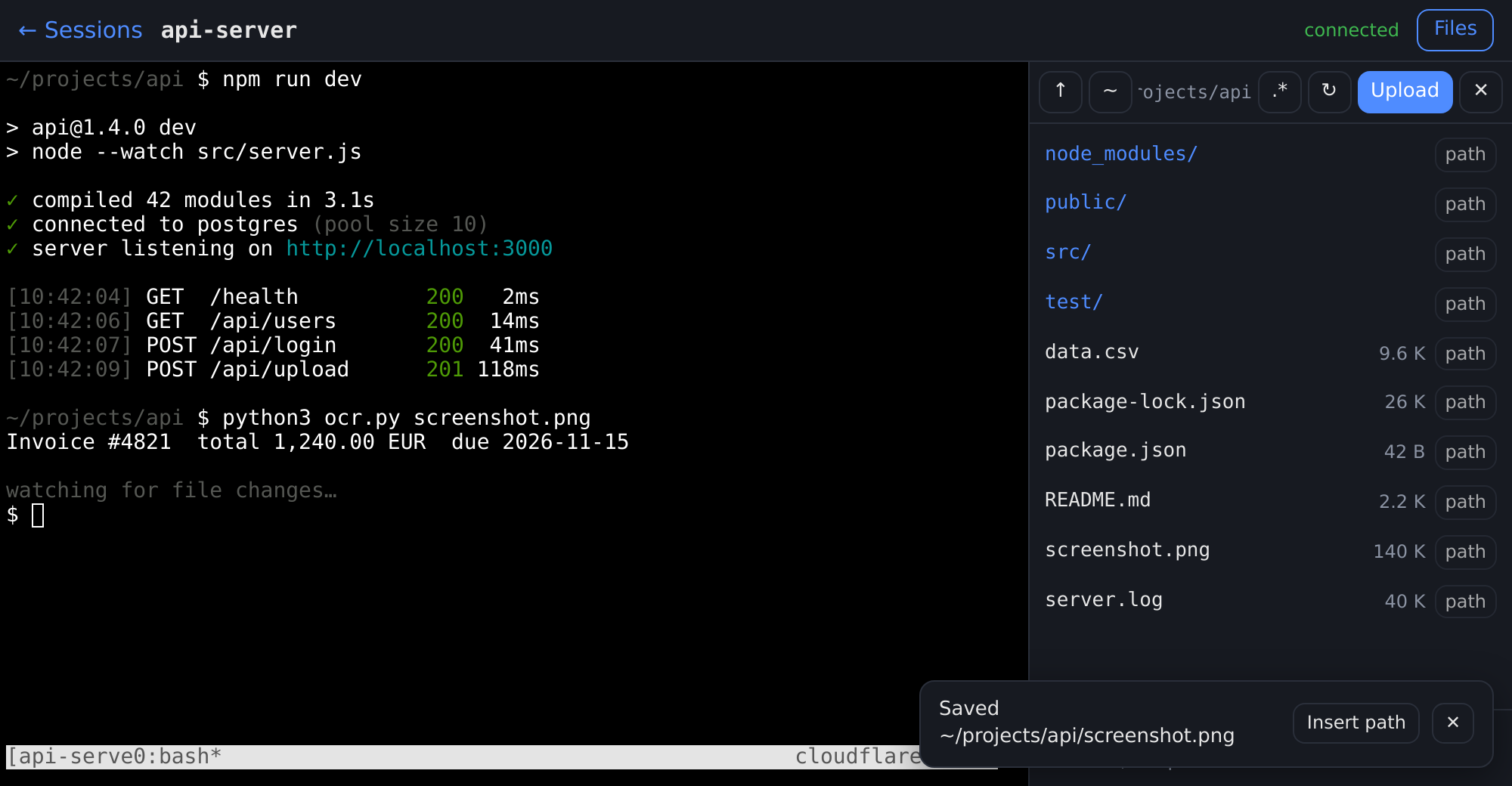
- Open a folder: click its name. ↑ goes up one level, ~ returns home. Dotfiles are hidden until you press .*.
- Download: click a file's name.
- Upload: press Upload, or drag files from your computer anywhere onto the terminal. They land in the folder the panel shows. If a file with the same name exists, you're asked before it's replaced.
- Paste an image: copy an image or a screenshot, then paste into the terminal with Ctrl+Shift+V
(Mac: Cmd+V). It's saved as
pasted-<date>-<time>.pngin the current folder. Pasted text still goes to the terminal as usual. - path: types the file's path into the terminal, quoted if needed, so you can pass it to a command. After an upload, the message in the corner has the same button.
The panel runs as your Linux user, so you see exactly what ls would show you. Uploads are limited to
MAX_UPLOAD_MB, 100 MB by default, which is also what Cloudflare's free plan allows per request.
Folders can't be uploaded, only files.
On a phone the panel covers the terminal. Close it with ✕ or by pressing path.
Mobile key bar#
On touch devices a key bar appears under the terminal:
| Key | Sends |
|---|---|
| Esc, Tab | Esc, Tab |
| Ctrl | arms Ctrl for the next key you type, so Ctrl then c sends ^C |
| ^B | the tmux prefix, Ctrl-b |
| ↑ ↓ ← → | arrow keys |
| | ~ | characters that are awkward on phone keyboards |
tmux basics#
Inside a session, tmux works as usual. The prefix is Ctrl-b.
| Keys | Action |
|---|---|
Ctrl-b c |
new window |
Ctrl-b n / Ctrl-b p |
next / previous window |
Ctrl-b " / Ctrl-b % |
split horizontally / vertically |
Ctrl-b o |
next pane |
Ctrl-b [ |
scroll and copy mode, q to leave |
Ctrl-b d |
detach, same as closing the tab |
For mouse-wheel scrolling, add this to ~/.tmux.conf, then run tmux source ~/.tmux.conf:
set -g mouse on
Same sessions from the server#
The web sessions are ordinary tmux sessions of your user:
tmux ls
tmux attach -t work
Start a long job from SSH at your desk, then check on it later from your phone.